
A 40 GB upload that dies at 97% is one of the more unfair things a computer can do to you. Three hours of fine, one hiccup, and the progress bar goes back to zero.
Uploads fail because connections aren't continuous
An upload feels like one action, but underneath it's a network connection that has to stay open the entire time. Big files take long enough that something almost always changes before the end.
Wi-Fi handoffs. Walk from one room to another and your laptop may hop between access points, or between the 2.4 GHz and 5 GHz bands of the same router. Each hop can drop the connection for a second. A single long upload often doesn't survive that.
Sleeping laptops. Close the lid, or leave it long enough for the display to sleep, and many laptops cut the network to save power. If you've come back to an upload that says "connecting" and never moves, this is usually why.
Mobile data switching. On a phone, moving between Wi-Fi and cellular, or between cells, gives you a new network path and often a new IP address. From the server's point of view, the client it was talking to disappeared and a new one showed up.
Browser tabs. Browsers throttle background tabs to save battery and memory. Switch away from an upload tab for a while, especially on a phone, and the browser may suspend it outright. Refresh it and the upload is gone with the page.
Everything else. A router rebooting, a VPN reconnecting, an ISP blip at 3 a.m. A long enough upload makes rare events likely.
The real problem isn't that connections drop. It's that a traditional upload treats the whole file as one unit. Lose the connection at any point and the server has nothing it can use, so the client has to start over.
What chunked and resumable uploads do differently
A chunked upload splits the file into pieces, say 5 or 10 MB each, and sends them one at a time or several in parallel. Each chunk is its own small request. When it lands, the server acknowledges it and keeps it.
That alone changes the failure mode. If the connection drops, you lose the chunk that was in flight, not the file. Everything before it is already on the server.
A resumable upload adds the second half: when the client comes back, it asks the server which chunks arrived, then sends only the missing ones. The upload picks up roughly where it stopped. Once every chunk is in, the server assembles them into the original file.
A few things fall out of this design:
- A dropped connection costs you seconds, not hours. Only the current chunk has to be re-sent.
- Retries happen on their own. A ten-second Wi-Fi hop is invisible.
- Progress is real. With chunks, the bar tracks what the server has confirmed, not just what left your machine.
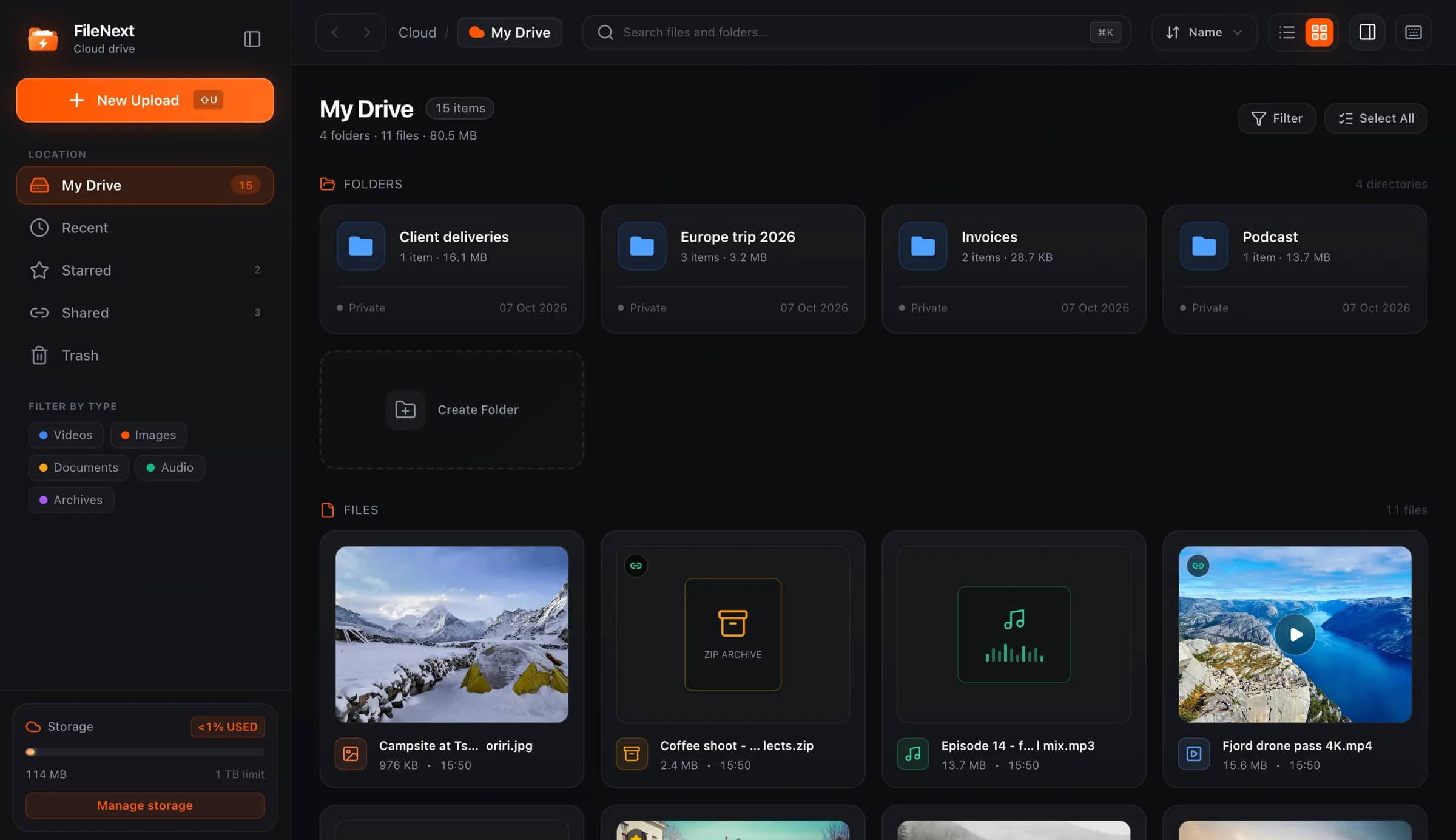
FileNext uploads resume this way. If the connection drops in the middle, the upload picks up when it comes back rather than starting over. The same applies whether the file is 200 MB or 200 GB; there's no limit on the size of a single file, only on your total storage.
Why "it's the server's fault" is often wrong
A lot of upload failures happen on your side of the connection: your Wi-Fi, your laptop's power settings, your browser's tab management. A resumable upload doesn't stop those things from happening. It makes them stop mattering.
That's the thing to look for in any tool you rely on for large files. Not "fast uploads," but "what happens when the connection drops." If the answer is "start again," plan on babysitting it.
A checklist for getting a large file up on a bad connection
You can't fix the network, but you can take away most of its excuses.
Before you start
- Plug in. A laptop on battery is a laptop that will try to sleep, and most OS settings are more generous about sleep when plugged in.
- Turn off sleep for the duration. On a Mac, the Battery or Energy settings have a "prevent automatic sleeping" option when on power. On Windows, set sleep to Never while plugged in. Change it back after.
- Use the best connection you've got. A cable beats Wi-Fi. Wi-Fi close to the router beats Wi-Fi through two walls. On a phone hotspot, put the phone where the signal is strongest and leave it there.
- Don't start on a connection you're about to leave. If you're walking out of the cafe in twenty minutes, wait until you're somewhere you'll stay.
- Keep the original file in place. Don't rename, move or delete the file while it's uploading. A resumable upload reads the remaining chunks from the same file. Move it after you've seen it finish.
While it runs
- Leave the tab in front, or use the app. On a phone, a background browser tab is the first thing the OS throws away. A native app isn't a tab: the FileNext Mac app can sync a folder for you rather than you dragging files into a browser, and the Android app's Auto Backup runs in the background. See /apps.
- Don't start a video call or a big download on the same connection. Upload is usually the slower direction on home connections, and anything competing for it makes the upload more likely to time out.
- If it stalls, give it a minute before you refresh. A resumable client retries on its own after a drop. Refreshing out of impatience is the one thing that can turn a thirty-second pause into a restart.
If it fails anyway
- Try again from the same file. If the upload is resumable, this is where you find out: the retry should skip what already arrived.
- Split the job, not the file. If you have twenty files and the connection is awful, upload them in a few batches rather than one enormous drag. If one batch fails, the others are done.
- Try a different time of day. Home connections are slower in the evening when everyone's streaming. Late at night often goes faster with fewer drops.
Phones are a special case
Uploading a large video from a phone is the hardest version of this. The phone wants to save battery, the network keeps switching between Wi-Fi and cellular, and the browser suspends tabs you're not looking at.
The reliable approach is an app that uploads in the background. On Android, the FileNext app has an optional Auto Backup for photos and videos, so a 4K video shot this afternoon, roughly 300 to 400 MB per minute at typical phone bitrates, goes up on its own while you do something else. You choose what gets backed up. Details at /download.
If you send videos through the Telegram bot instead, Telegram has its own per-file limit, 2 GB normally and 4 GB with Telegram Premium, and sending a video "as file" skips Telegram's compression. The bot tells you if a video is over its limit. For anything larger, the web drive has no per-file cap.
The short version
Big uploads fail because something in the connection changes before they finish, and a single-request upload can't survive that. Resumable uploads send the file in pieces, keep the pieces that arrived, and re-send only what's missing, so a drop costs you a chunk instead of the whole file.
On your side: plug in, stop the laptop from sleeping, use the best connection you have, keep the file where it is until the upload says it's done, and don't refresh the second it stalls. If it still fails, /help covers the specifics for FileNext.