
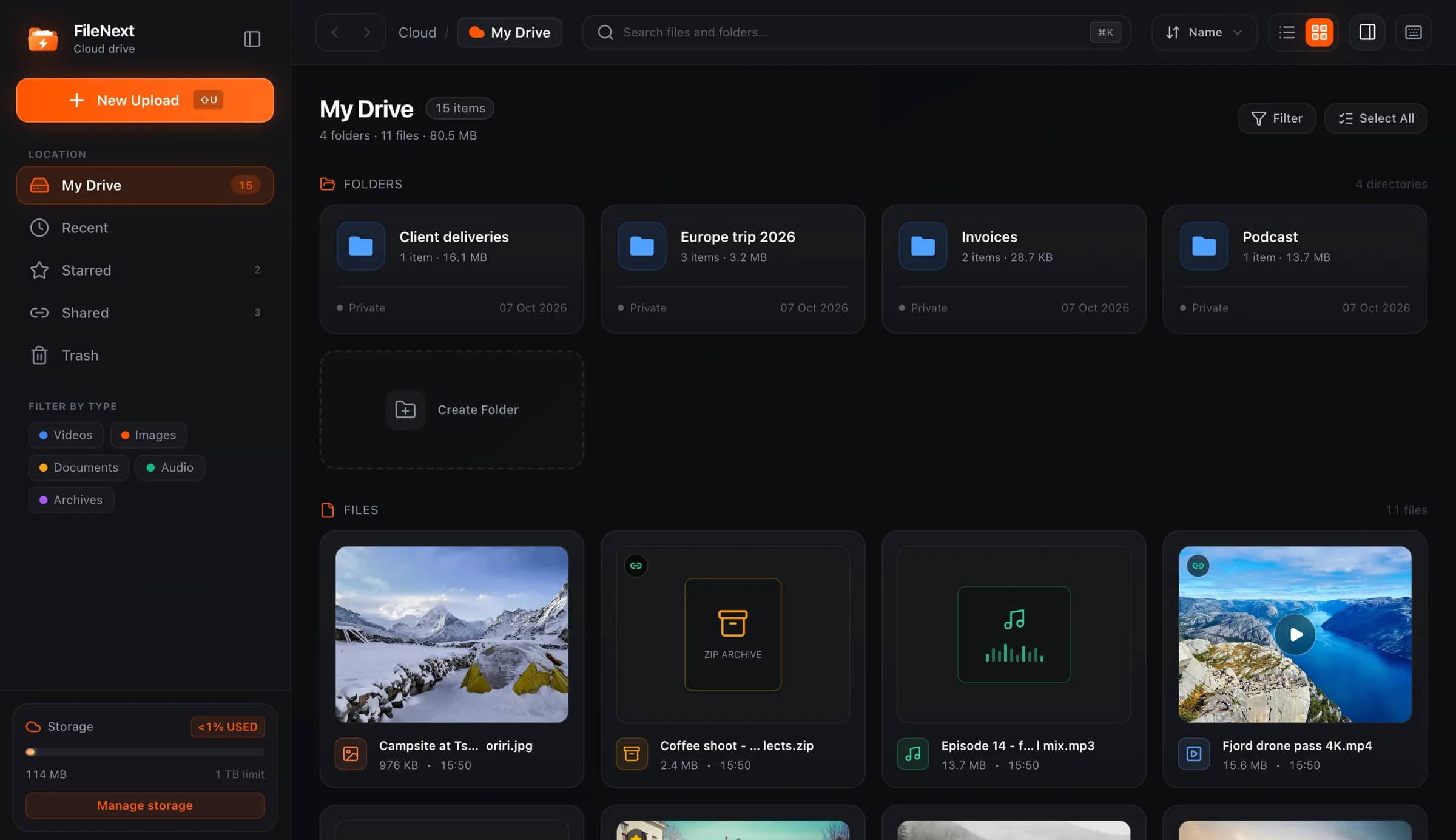
Storage fills up from the top, not the bottom. A thousand screenshots and PDFs add up to less than one phone video. So when the number on your Storage page starts climbing, don't start at the oldest folder and scroll. Go straight to the largest files, decide about those, and you'll usually get most of the space back in a quarter of an hour.
Where the space goes
A few file types account for nearly all of it.
Video is the big one. Phone video at 4K is roughly 300 to 400 MB per minute, so a ten-minute clip from a birthday is a few gigabytes on its own. If you back up your phone's camera roll, video is almost certainly your top line.
Raw camera files and layered design files come next. One shoot's worth of RAW photos can be larger than a year of JPEGs.
Archives. The ZIP you downloaded once, unpacked, and never deleted. Plus the unpacked copy sitting next to it, so you have everything twice.
Exports and duplicates. Every "final_v2" and "final_v2_fixed" sitting beside the project file that made them.
Documents, text and most photos barely register by comparison. You could delete every PDF you own and not notice.
Find the big files in two minutes
Open the Storage page first. It splits your total into videos, images, audio, documents, archives and Trash, so you know before you start whether this is a video problem or an archive problem. If videos are most of your total, you may not need to touch anything else.
Then go to the drive, filter by Videos, and sort by size, largest first. The top ten entries in that list are usually the problem, and they're usually not the files you'd have guessed.
Do the same with the Archives filter, then Photos. Archives are quick wins because you almost never need the ZIP after you've unpacked it.
Two more tricks that speed this up. Search for "copy", "(1)", "v2", "export" and "final". Phones and file managers add these when they duplicate something, and they're a reliable sign a twin exists nearby. And check Recent. If the number jumped this week, the cause is in there.
Trash still counts
This catches almost everyone. You delete a 6 GB folder, look at the Storage page, and nothing changed. The files are in Trash, and Trash counts against your total until you empty it.
Trash exists so you can undo mistakes: anything in there can be restored. Emptying it is permanent, so look through it once before you do. But if you're cleaning up to free space, emptying Trash is the step that makes it real.
A good habit: when you delete something big on purpose, go to Trash and empty it then, rather than letting it sit for a month and wondering why the number didn't move.
What's safe to delete
Work down the big-file list with these questions.
Is it an archive you've already unpacked? Delete the ZIP. The contents are the useful part.
Is it an export of something you still have the source for? A rendered video from a project file you kept, a flattened JPEG of a layered design, a PDF printed from a document. If you can regenerate it in ten minutes, it's usually fine to delete, with one exception covered below.
Is it a duplicate? Same name with "(1)" or "copy", same size, same date. Preview both (video, photos, PDFs and text all open in the drive) and keep one.
Is it a screen recording or a test clip? These are the fattest files on most drives and the least missed.
Is it someone else's file you downloaded to look at once? Delete it. If it mattered, you'd have moved it into a folder.
Now the things that are not safe to delete.
Originals of anything you can't shoot again. The camera roll from a trip, the interview recording, the raw files. Even if you have an edited version.
The project file: the editor timeline, the layered design file. It's small next to the exports and it's the only way to make a different export later.
Anything currently shared with someone who still needs it. Check the Shared view before you trash a folder. If a link points at it, people opening that link will find nothing.
Originals versus exports
The usual advice is "keep the original, delete the export." On FileNext that's mostly right, with one twist.
When you upload a video, FileNext makes streaming versions of it (360p up to 1080p) so it plays smoothly for whoever watches. Those aren't files you manage or delete. You always keep your original and get it back when you download. So there's no reason to keep a separate "web version" of a video just for sharing. Upload the original once and share that.
Photos follow the same logic. Keep the camera original, not the three resized copies you made for different sites. If you need a resized version again, you make it from the original.
The exception is exports that took real work and that you'll send again as-is: the color-graded master, the final mixed audio. Those are deliverables, not scratch files. Keep them, and delete the intermediate versions between the original and the final.
There's also no limit on the size of a single file, only on the total. You don't need to split a large original into pieces to store it. One file, and the ZIP you made to split it can go.
The 15-minute cleanup
Do this once a month, or whenever the Storage page surprises you.
Minutes 0 to 2: open the Storage page. Note the total and which type is largest.
Minutes 2 to 6: filter by that type, sort by size. Go down the top twenty. Trash anything that fails the questions above. Shift-click selects a range and Ctrl-click (Cmd-click on a Mac) picks individual files, so you can trash them in one go.
Minutes 6 to 9: filter by Archives. Trash every ZIP you've already unpacked.
Minutes 9 to 12: search for "copy", "(1)" and "v2". Trash the twins.
Minutes 12 to 14: check Shared. Make sure you didn't trash something that's live. Restore it if you did.
Minute 15: empty Trash. Look at the Storage page again.
The first pass is the big one. The second and third take five minutes, because the big stuff is already gone.
Keep it from filling up again
Pick a place for big files and use it. "Originals" for things you'll never delete, "Exports" for things you can regenerate. When space is tight, you only have to look in Exports.
If you back up your phone with the Android app, decide what you're backing up. Auto Backup lets you choose what it includes, and video is what grows fastest, so think about whether every clip on your phone needs to be in your drive.
And if you're genuinely out of room after a cleanup, not because of clutter but because you have more than a terabyte of files you want to keep, Premium goes to 5 TB. Do the cleanup first. It's usually enough.