
If your phone is the only place a photo lives, it isn't backed up. The fix is a routine, not a product, and it takes about five minutes a month once it's set up.
Why phone storage fills up
Video is the main reason. At typical phone bitrates, 4K video is roughly 300 to 400 MB per minute. A ten-minute recording of a school play is a few gigabytes on its own. Switch the camera to 4K at 60 frames per second and it's more. Most people never change that setting back.
Photos add up more slowly, but there are more of them. Burst shots, motion photos that save a short clip alongside each still, screenshots, and media that chat apps save straight to the gallery all pile in without you noticing. A year of normal use is tens of gigabytes before you've taken a single photo you'd call important.
The "Storage almost full" warning tends to show up at the worst possible moment, right as you're about to film something. That's when people start deleting in a hurry, and deleting in a hurry is how originals get lost.
What "backed up" should mean
Backed up means a copy exists on a different device, in a place that doesn't fail when the phone fails. Use this test: if the phone went into a river tonight, could you open the photo on something else tomorrow?
A few things that feel like a backup and aren't:
- An "archive" or "hidden" folder on the same phone. Same device, same river.
- A sync that mirrors deletions. If deleting a photo on the phone deletes it everywhere within a minute, you have a mirror, not a backup. Mirrors are useful for convenience, but at least one copy needs to survive a wrong tap.
- A compressed copy. Chat apps shrink what you send. The version of your friend's wedding video that's sitting in a group chat is not the original, and no amount of saving it to the gallery will make it one.
- A thumbnail. Some services keep a small preview on the phone and the full file elsewhere. That's fine as long as the full file is actually there; check it, don't assume.
The standard you want is simple: the full-size original, in a second place, that doesn't vanish when the first copy does.
Keep the originals
The original is the file as it came off the camera: full resolution, no re-encoding. Every copy after that is a derivative, and derivatives can't be turned back into originals.
Three habits keep originals safe:
Back up before you share. The gallery copy is the original; the one you sent is not. If the gallery copy is already backed up, you can send compressed versions all day.
Back up before you delete. Freeing up space is the moment people lose things. Confirm the file exists in the backup, open it there and check it's the full size, and only then remove it from the phone.
Don't use a screenshot as a copy. A screenshot of a photo is a lower-resolution picture of a picture. It's fine for sending someone a quick look. It's not a backup.
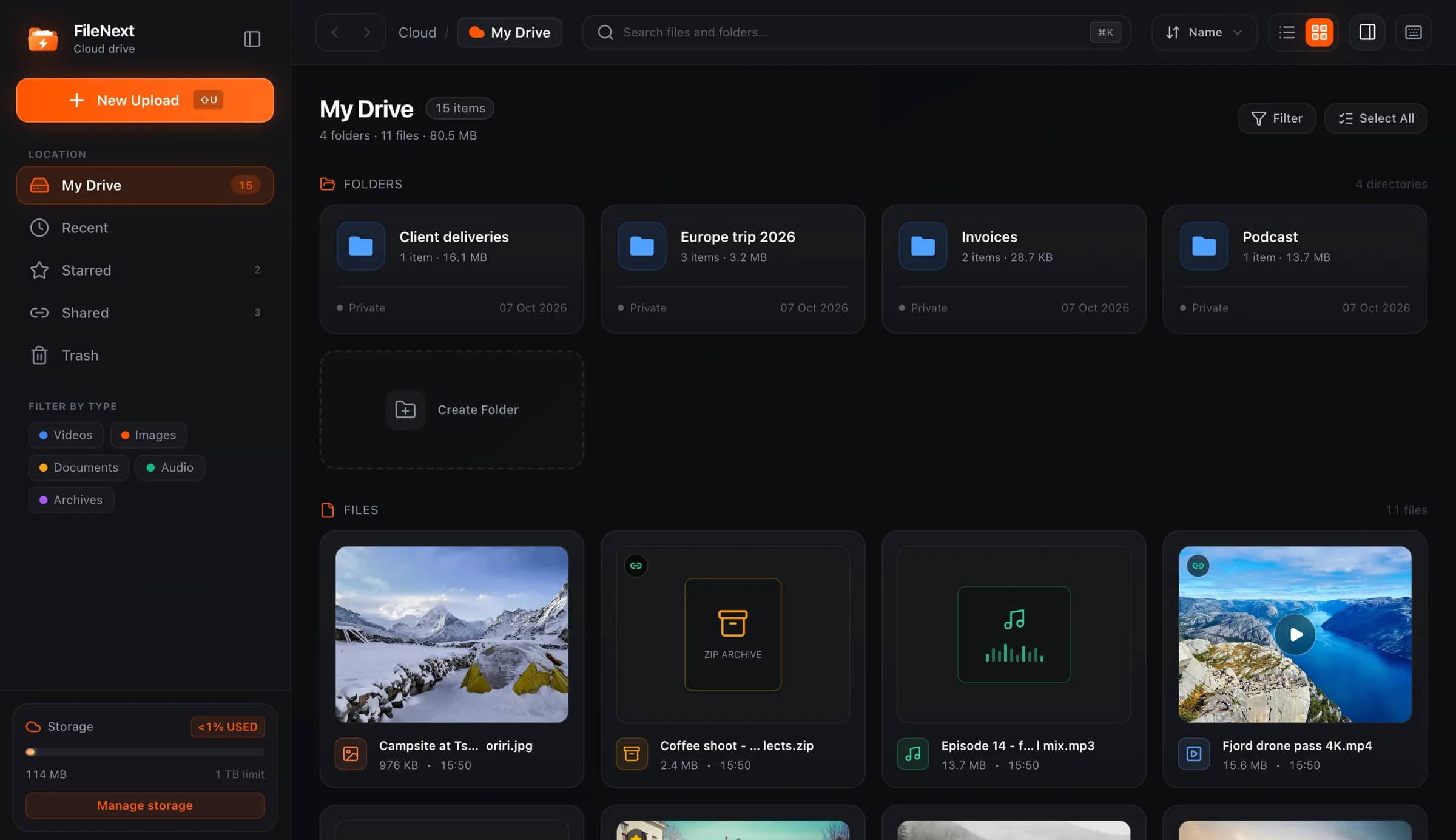
If you've been saving files to a computer, keep the folder structure you already have. When you move that folder to the cloud, you want it to arrive the way it left. On the FileNext web drive, you can drag a folder in and its structure is kept, which saves rebuilding years of "2023/Goa trip" by hand.
The routine
This is the part that does the work.
Weekly, check that automatic backup actually ran. Most backup tools show when they last ran successfully. Automatic backups quietly stop for ordinary reasons: the phone was never on Wi-Fi long enough, the battery saver blocked background work, the app was closed and not reopened. A backup that silently stopped six weeks ago is worse than none, because you think you have one.
Monthly, open the backup from a different device and look at a recent photo. Not the list, the photo. Zoom in. If you're on a laptop, check the file size matches what the phone shows. This takes two minutes and it's the only way to know the backup is real rather than reported.
After an event, back up that day. A trip, a wedding, a birthday. Don't wait for the schedule to catch it. Those are the files you'd actually miss.
Before deleting to free space, confirm first, delete second. Covered above, but it's the step people skip.
For the things that matter most, keep a second copy somewhere else. A computer, an external drive, a different service. Two copies in two places is the point at which you stop worrying.
Where Auto Backup in the FileNext Android app fits
The FileNext Android app on Google Play has an optional Auto Backup for photos and videos. It's off until you turn it on, and when you do, you choose what to back up rather than handing over the whole gallery. It runs in the background, so once it's set up you aren't opening the app to push files.
That covers the "second place" part of the routine. Every account gets 1 TB free with no card, which is enough that you don't have to pick which year to keep. Uploads resume if the connection drops, so a backup that started on Wi-Fi at home and lost signal halfway through picks up where it stopped rather than starting over.
The drive side helps with the checking part. Filters by type (photos, videos) and the Recent view get you to the latest uploads, and the previews open photos and play videos, so the monthly spot check doesn't need a download. Starred is a reasonable place to keep the handful of files you'd want to find in a hurry.
One behavior to know about: deleting a file in the drive moves it to Trash, where you can undo or restore it. Emptying the Trash is permanent. If you're clearing out duplicates, go through Trash last, and look before you empty it.
For the computer side of a two-copy setup, the Mac app downloads from the site and has an optional folder sync, so a folder on the computer can stay in step with the drive. iPhone, iPad and Windows apps are coming soon.
Two things a backup won't do
It won't organize for you. If the gallery was a mess, the backup is the same mess in a second place. That's fine; a mess you can recover is better than a tidy phone you can't. Sort later, on a bigger screen, with search and multi-select, when you have time.
It won't protect you from your own mirror. If the tool you use deletes in both places when you delete in one, treat it as a convenience, and keep the second copy in something that doesn't. The routine above, with its monthly check and its "confirm before delete" rule, is what makes the whole thing hold.