
"Delete" in a cloud drive is two different actions wearing the same name. The first moves a file to Trash, where it sits, recoverable, until you deal with it. The second removes it from Trash, and that one is final. Most mistakes come from confusing the two: either people hoard files they're afraid to delete, or they empty Trash on autopilot and lose something.
Stage one: Trash
When you delete a file in your drive, it moves to Trash. It disappears from its folder, from Recent and from Starred. Nothing about the file itself has changed. It's the same bytes, same name, same cover, in a holding area.
This is true of FileNext and of most cloud drives, and it's deliberate. Trash exists so that the first click is never the one that loses data. Think of it as "I don't want this in my drive," not "destroy this."
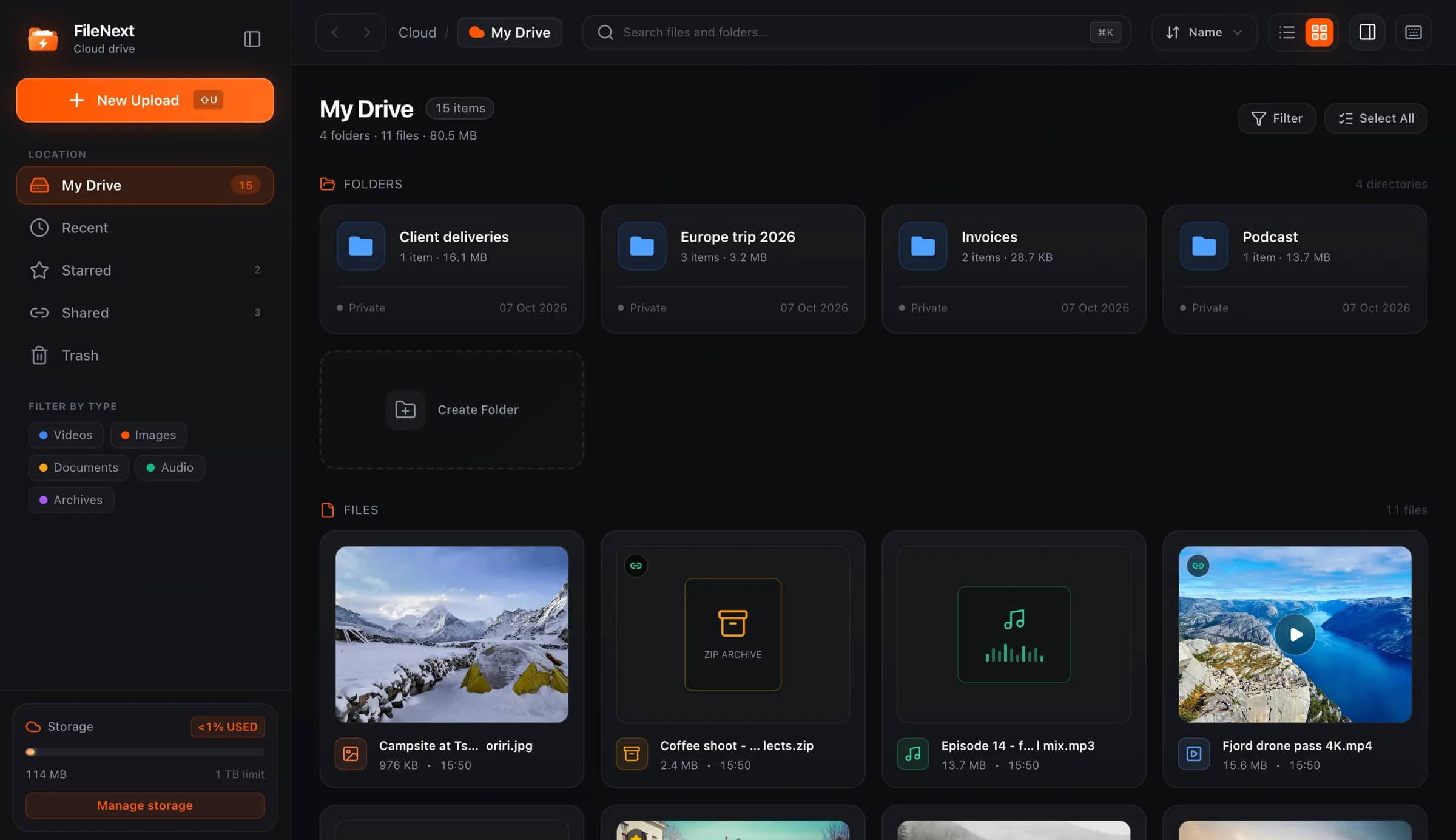
In the FileNext drive, you can trash a single file from its right-click menu (Move to trash) or select a batch and trash them together. Shift-click selects a range, Ctrl-click (Cmd-click on a Mac) adds or removes single items. That makes a cleanup pass quick: filter to videos, pick out the ones you're done with, select, trash. Press ? in the drive to see the keyboard shortcuts.
Undo: for the next few seconds
Right after you trash something, you get an Undo. It's there for the reflex mistake: you selected eleven files and meant ten, or the right-click landed on the wrong row. Press Undo and everything goes back where it was.
Undo is a short window, and it's meant to be. It's not the recovery tool; it's the "oops" tool. If you notice the mistake immediately, use it. If you notice it an hour later, you want the next stage.
Restore: for as long as it's in Trash
Open Trash, find the file, restore it. It goes back to where it came from. There's no time pressure on this beyond one thing: it has to still be in Trash. A file you trashed last week and haven't emptied is as recoverable as one you trashed a minute ago.
A good habit is to check Trash before you empty it, the way you'd glance through a bag before throwing it out. If anything in there makes you pause, restore it and decide later. The cost of restoring something you didn't need is one more click. The cost of the reverse is the file.
/help#restore has the short version of this.
Trash still counts toward your storage
This is the part that surprises people. Trashing a file doesn't free up any space. The file still exists, so it still takes up its share of your storage, and your Storage page will show it under Trash.
That means a cleanup pass that ends at "moved 40 GB of old videos to Trash" hasn't freed 40 GB. It's freed nothing yet. If you're trashing things to make room, the job isn't done until you empty Trash, or delete those specific items from it.
On FileNext, the Storage page splits your usage into videos, images, audio, documents, archives and Trash, so you can see at a glance how much is sitting in the holding area. Every account has 1 TB free, so this is rarely urgent, but it's worth knowing which number is which. /help#storage-use covers the Storage page.
Emptying Trash is permanent
Deleting a file from Trash, or emptying the whole thing, removes it for good. There's no second Trash behind the first and no "recently emptied" list. If it was your only copy, it's gone.
Two rules that follow from this:
- Don't empty Trash as a reflex. Empty it when you need the space, or when you've just done a cleanup and reviewed what's in there. Not every time you see a number next to it.
- Delete specific items from Trash rather than emptying it when you want space back but aren't sure about everything in there. Empty is for "I've checked all of this."
Emptying Trash is also the step you'll want when you really do want something gone, not just out of sight. A file in Trash is still in your account.
Deleting a file versus turning off its link
These are different actions with different effects, and people reach for the wrong one all the time.
Turning off a share link stops the link from working. Anyone who opens it after that gets nothing. The file is untouched in your drive; you've closed the door, not removed the room. This is the control for "I shared this with the wrong people," "the project is over," or "that link got posted somewhere it shouldn't have." It's instant, it applies to everyone at once, and you can make a new link later. It can't recall copies people already downloaded. /help#stop-sharing has the steps.
Deleting a file is about your drive. You don't want the file in your account anymore. It's the control for cleanup, for finished projects, for the duplicate export you uploaded twice.
If what you want is for a link to stop working, turn the link off. Don't rely on deleting the file to do that job; that's the wrong tool, and it costs you the file. If you want the file gone and you'd also like to be sure nobody's still opening it, do both: turn off the link, then trash.
It also goes the other way. If someone shares a file with you and you don't want it, that's their file, not yours. Nothing you delete removes it from their drive. If the content shouldn't be there at all, the Report button on every share page is the route; /report explains what happens after.
A habit for deleting with confidence
The reason people hesitate to delete is that they're not sure where else the file lives. Remove that uncertainty and deleting becomes easy.
Keep originals somewhere else for anything irreplaceable. Family videos, the raw footage from a shoot, scanned documents, the master of a project you spent months on. Any copy in a cloud drive should be one copy of at least two. The second can be an external drive, another service, or the phone it was shot on, as long as it isn't the same place. When you know the master exists elsewhere, trashing the cloud copy is a tidiness decision, not a risk.
Decide what's disposable when you upload, not when you delete. Exports, proxies, test renders, the compressed version you made to send on Telegram: these can be remade from the source. Put them in a folder that says so ("exports", "renders", "sent") and you'll know, months later, that everything in that folder is safe to clear.
Trash in batches, review once, then empty. Don't delete one file at a time over a week and empty Trash each evening. Do a pass, let it sit in Trash, look it over once, empty. One review instead of twenty.
Before you empty, download anything you don't have elsewhere. Owners always get their own files in original quality. Select several and you can download them as one ZIP.
The short version
Trash is reversible. Undo is for right now; Restore is for any time after. Trash still uses storage until you empty it. Emptying is permanent. Turning off a link and deleting a file are different jobs; use the one you mean. And for anything you can't make again, keep a second copy somewhere that isn't the same drive, so that pressing delete never has to be a brave decision.