
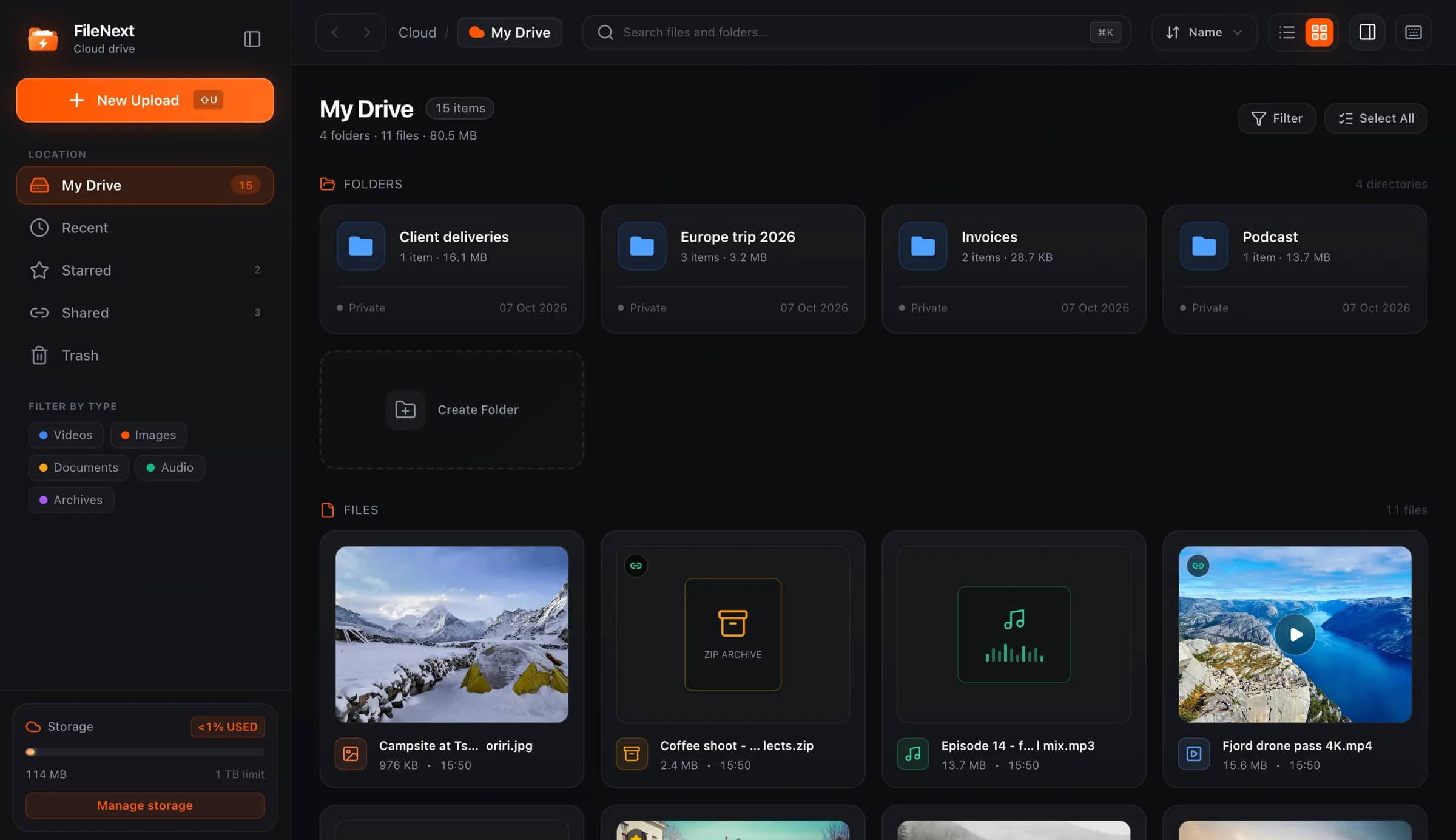
If you've ever pasted twelve links into one message and then sent a thirteenth because you missed one, you wanted a folder link. One link, the whole set, and anything you add later shows up without another message.
When a folder link beats a pile of file links
A file link is right when you mean "this one thing." A folder link is right when the files only make sense together, or when the set isn't finished yet.
A course. Eight lessons, a PDF per lesson, a few worksheets. Students don't want to hunt through a chat for lesson 5. They want one place where the lessons are in order and the worksheet sits next to the lesson it belongs to. Share the course folder once, pin the link, and when you record lesson 9 next month it's already there.
A wedding. The photographer delivers 600 photos and four videos. Nobody is going to send 604 links, and nobody wants to open 604 pages. One folder, maybe with subfolders for Ceremony, Reception and Highlights, and the couple forwards the same link to both families.
A client project. Deliverables change. Draft 1, draft 2, the final, the final-final, plus the source files the client asked for at the last minute. A folder link means the client always looks in the same place and you never have to say "ignore the earlier link."
The common thread: the recipient needs more than one file, and the set may grow. If both are true, share the folder. If you'd only ever send one file and it's done, a file link is simpler and exposes less.
What a folder link exposes
A folder link exposes everything inside the folder: every file, every subfolder, and every file inside those subfolders. On FileNext, files are private until you create a link, so a folder link is the moment the whole tree becomes reachable by anyone who has the link.
It also exposes anything you add later. That's the feature for a course or an ongoing project. It's also the thing to remember when you drag a file somewhere in a hurry. If the wedding folder is shared and you drop next week's unrelated client video into it by mistake, that video is now part of the wedding link.
Two habits keep this from biting you:
- Share a folder that exists only for sharing. Make a "Course - Spring batch" folder and put exactly what students should see in it. Keep your working files, unused takes and notes in a sibling folder that was never shared.
- Before you add something to a shared folder, ask whether everyone with the link should have it. If the answer is no, it goes somewhere else.
Share links are listed under Shared in the drive, so you can check at any time which folders are currently open and turn off the ones you've forgotten about.
Keep the structure
A folder link is only as useful as the order inside it. A flat folder of 300 files named IMG_4471 through IMG_4770 is a pile, even with one link.
Build the structure on your own computer first, then upload it. On the FileNext web drive, dragging a folder in keeps its structure: subfolders stay subfolders, names stay names. If you organized the wedding into Ceremony, Reception and Highlights locally, that's what the couple sees.
A few things that make a shared folder easy to walk through:
- Number things that have an order. "01 Welcome", "02 Setup", "03 First project" sorts correctly everywhere. "Welcome", "Setup", "First project" sorts alphabetically and puts First project at the top.
- Keep subfolders shallow. One or two levels is enough. If someone has to click five times to reach a file, they'll ask you to send it directly, which defeats the point.
- Put the thing people want most at the top level. For a wedding, that's the highlight video. For a client project, that's the final deliverable. Source files can live one level down.
- Set a cover on videos that matter. Every video gets an automatic cover frame, but a custom one via Change cover tells a viewer what they're about to open before they open it.
For videos, the player can step through the files in a folder one after another, which is why a numbered lesson folder works well as a course: finish lesson 3, move on to 4 without going back to the list.
People who open your link see a cover, the details, and Play and Download buttons. The files themselves open in the free FileNext app on phones and computers; it's on Google Play and on /apps for Mac now, with iPhone and Windows coming soon.
ZIP downloads for many files
When someone needs the whole set on their own disk, downloading files one at a time is tedious, and it's where people give up halfway. The FileNext drive can download many files, or a whole folder, as a single ZIP. Select the files you want with Shift-click for a range or Ctrl/Cmd-click for a few, or right-click the folder and choose Download.
Two things about ZIPs:
- A ZIP of 600 photos is big. If the photographer's originals are 10 MB each, that's roughly 6 GB in one file. It'll download fine on a good connection, but tell the recipient what to expect so they don't start it on a phone with no storage left.
- A ZIP is a snapshot. Files you add to the folder after someone downloads it aren't in their copy. For a growing course folder, the link is the living thing; the ZIP is what someone takes with them.
If the set is small, skip the ZIP and let people download individual files. If it's large, the ZIP saves everyone a hundred clicks.
Turn the link off when the project ends
Share links don't need to live forever. When the course batch finishes, the wedding gallery has been downloaded, or the client has signed off, turn the folder link off. It stops working for everyone at once, and the folder and everything in it stay in your drive exactly as they were. Only the link is gone.
Turning it off doesn't recall copies people already downloaded. It does stop the link from being forwarded again a year later and still opening.
With Premium, you can set the ending in advance: an expiry date on the link, a download limit, or a password for folders that should only open for the people you gave it to. Per-link stats show opens, plays and downloads, which is how you find out the course link is still being opened three weeks after the batch ended. See /pricing for what's included.
If you share the folder again later, that's a new link. The old one stays dead, so anyone who kept the old one has to get the new one from you. For a new batch of the same course, that's exactly what you want.
A short recipe
- Make a folder that contains only what the recipient should see.
- Organize and number it locally, then drag it into the drive so the structure comes with it.
- Share the folder, send one link, pin it where people will look for it.
- Add new files to the same folder as the project goes on.
- Turn the link off when the project ends, or set an expiry date up front.
More on share links in /help, and the longer guide to passwords, expiry dates and download limits covers when each one is worth adding.