
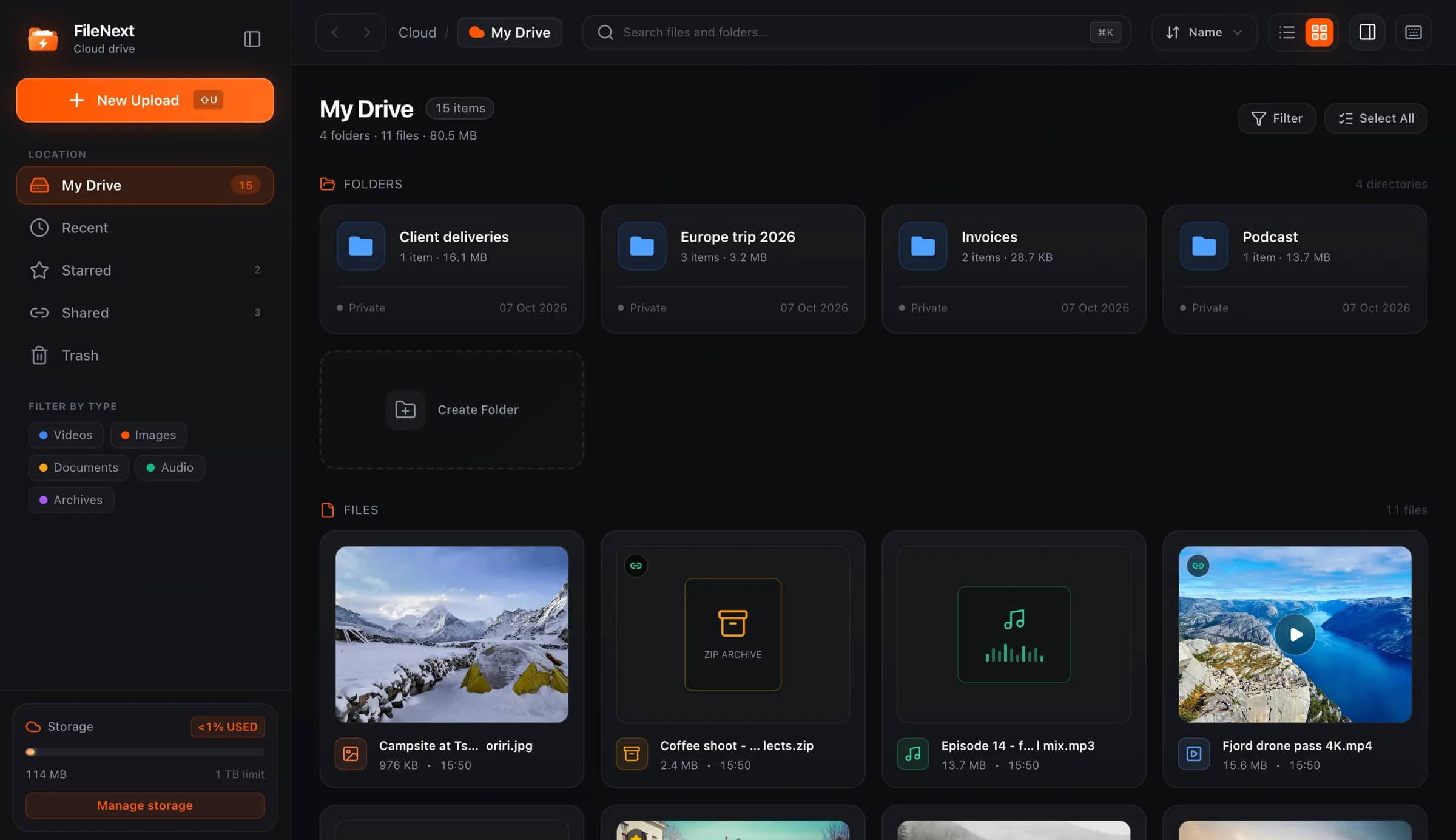
Most cloud drives don't get messy because people are lazy. They get messy because the system only worked on the day it was set up. A folder tree built for one project falls apart when the second project starts, the naming rule gets forgotten in week three, and six months later the root of the drive has 200 loose files and a folder called "misc 2".
The fix isn't more discipline. It's a system with fewer decisions in it. Here's one that holds up.
Top-level folders by purpose, not by date or client
Your top level should answer one question: what kind of thing is this? Not when was it made, not who it's for. Something like:
- Work
- Personal
- Media
- Archive
Four to six folders is the right number. If you have fifteen, you're already sorting at the top level, and you'll stop doing that the first busy week.
Inside each one, go one level deeper by project or subject. Work/Client-Sharma, Work/Website-Redesign, Personal/Taxes, Media/Phone-Backup. Stop at two or three levels. Every extra level is one more place a file can hide and one more click every time you want it.
Top-level folders per client or per year look tidy at first, but clients end and years roll over, and then you have a top level full of dead folders that look as important as the live ones. Put that stuff in Archive when it's done and your working set stays small.
If you drag a whole folder into FileNext, its structure comes along with it, so you can build the tree on your computer first and upload it in one go.
Put the date in the name, and put it first
Filenames sort alphabetically. Use that. If the date goes first in a fixed format, every folder sorts itself into a timeline without you doing anything:
- 2026-10-13_sharma_contract_v2.pdf
- 2026-10-02_sharma_brief.docx
- 2026-09-28_sharma_kickoff_notes.txt
Year-month-day with hyphens is the format that sorts correctly. "13-10-2026" or "Oct 13" won't. The rest of the name should say what the file is in a way you'd recognize a year from now. "final.mp4" isn't that. "2026-10-13_launch-reel_1080p.mp4" is.
A few rules that save you later:
- Lowercase, and hyphens or underscores instead of spaces. Spaces are fine on your own machine but get mangled in links and command lines.
- Versions as v1, v2, v3, not "final", "final2", "FINAL-final". If you need a version, you'll need a third one too.
- Keep the project name consistent. "sharma", "Sharma Co", and "SharmaProject" are three different things to search.
You don't have to rename old files. Start the rule today and let the old stuff sit. Search handles the past.
What to star (and what not to)
Starred is a shortlist, not a second folder tree. It works when it holds ten to twenty things you touch every week: the spreadsheet you update daily, the folder for the project that's live right now, the one video you keep sending to people.
It stops working when you star everything that felt important in the moment. Then it's just another pile.
A good habit: when a project ends, unstar its files on the way to Archive. In FileNext you can select a batch and star or unstar them together, so clearing the shortlist takes a few seconds, not a few minutes.
Stop hunting. Use Recent, filters and search.
A tidy folder tree isn't mainly for finding files. It's for not losing them. Finding files is a different job, and the drive has better tools for it than clicking through folders.
Recent covers most of what you actually want. The file you uploaded yesterday, the one you previewed this morning. Check Recent before you open a single folder.
Filters narrow the whole drive by type: videos, photos, documents, audio, archives. "That PDF from the Sharma project" becomes documents filter plus a search for "sharma". Two clicks.
Search works across everything, which is why consistent naming matters. If every file for a client has the client's name in it, search is a folder you never had to build.
Keyboard shortcuts make all of this faster. Press ? inside the FileNext drive to see the list. Once you've learned a handful you stop reaching for the mouse to do basic moves.
The trick is to treat folders as where things live and these tools as how you get to them. People who try to make folders do both end up with deep trees they still can't navigate.
Moving things in bulk
Reorganizing is only painful if you do it one file at a time. In FileNext, Shift-click selects a range and Ctrl-click (Cmd-click on a Mac) adds or removes individual files. Once you have a selection, you can move, star or trash the whole set at once.
That's how you fix a messy root in one sitting: filter by type, select the range, move it to the right folder, repeat for the next type. A drive with 200 loose files is maybe fifteen minutes of work this way.
Right-click on anything for Preview, Download, Share, Rename, Move, Change cover, Add to Starred, Details and Move to trash. Rename is where the naming rule happens if a file arrived with a bad name. Details tells you the size and date if you've forgotten which copy is the newer one.
If you need a whole folder on your computer, download it as a ZIP rather than file by file.
A monthly Trash routine
Trash is a safety net, and a safety net you never clear becomes a storage leak. Once a month:
- Open Trash and skim it. Anything you recognize as a mistake, restore it. FileNext keeps trashed files restorable until you empty.
- Empty the rest. This is permanent, which is the point. Trashed files don't count as organized; they count as not decided yet.
- While you're at it, open Recent and look for anything that landed in the root or in the wrong folder during the month. Move it.
Pair this with the Archive folder. End of project: unstar, move the folder into Archive, done. Archive is allowed to be a bit of a mess. Nobody's working in it.
With 1 TB free, you're unlikely to run out of room any time soon, so this routine isn't about space. It's about keeping the drive small enough that you can see it. See /features for everything the drive does, or /help for the details on any of this.
The whole system on one card
- Four to six top-level folders by purpose. Two or three levels deep, no more.
- Date first in the filename, year-month-day. Lowercase, no spaces, v1/v2 for versions.
- Star only what you touch this week. Unstar when the project ends.
- Look in Recent before you look in folders. Filter by type, then search.
- Fix messes with multi-select and bulk move, not one file at a time.
- Once a month: restore what you need from Trash, empty the rest, archive what's finished.
None of this needs a special tool. It'll work on any drive. It just works a little faster on one with decent filters and shortcuts.