
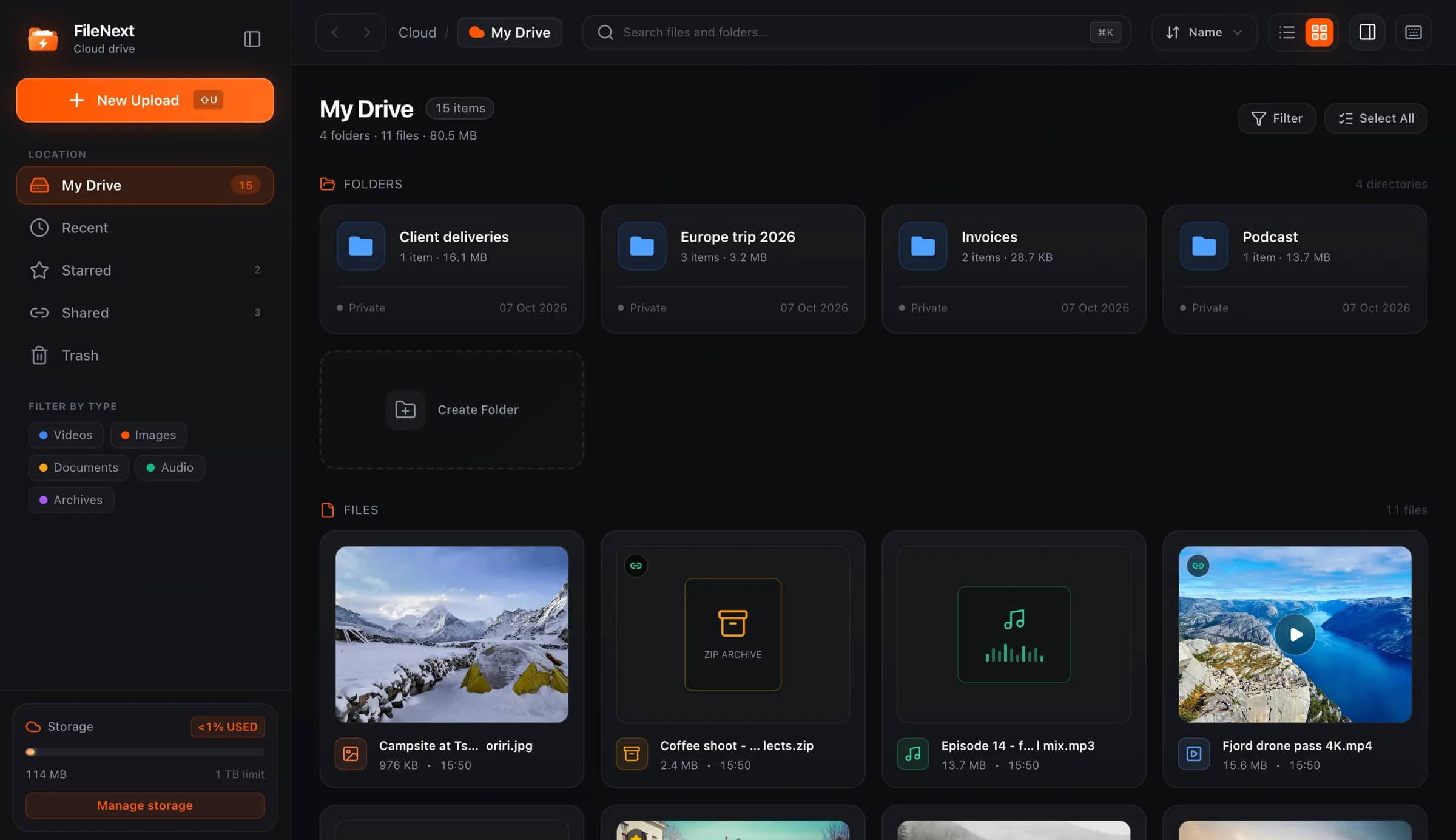
Running a channel is mostly repetition. The same kind of post, several times a week, for months. If each post takes twenty minutes of re-uploading, re-cropping a thumbnail and retyping the caption, the channel dies the first busy week. The routine below is built around doing each thing once and letting the bot repeat it.
Upload once
Telegram compresses anything you send "as video." It looks fine on a phone until someone watches it on a bigger screen. The per-file limit is also 2 GB (4 GB with Telegram Premium), which rules out long episodes entirely.
So the first rule: the file lives in one place, and you post a link to it. Send the video to the FileNext bot once. Send it as a file rather than as a video, so Telegram doesn't compress it on the way. The bot replies with a share link, then a card with the cover and a "Watch on FileNext" button. The video lands in a "Telegram uploads" folder in your drive.
From then on, every post, every repost and every pinned message points at the same file. There's nothing to re-upload.
The bot has a size limit per video and tells you what it is. For anything above it, upload from the web drive, which has no per-file limit, and share from there.
What viewers get is playback that adapts to their connection, because every uploaded video is converted to several quality levels. Someone watching on a slow connection gets a lower quality instead of a spinner.
Set a cover
Every video gets an automatic cover taken from a frame. For a channel, a custom cover is worth the extra minute. A consistent look, with the series name and episode number in the same corner every time, makes your posts recognizable even when they're forwarded without the caption.
In the bot, open Covers, pick the video, then send a photo. That photo becomes the cover. JPEG, PNG, WebP or GIF, up to 10 MB. On the web, right-click the file and choose Change cover.
Make the covers at the same size every time and keep a template. Ten minutes to set up, seconds per episode after that.
Put your channel name on every post
Reposts are how channels grow and also how they lose credit. Someone forwards your video to three groups, the caption is gone, and nobody in those groups knows where it came from.
The bot's /style command handles this. Set a header and a footer, and the bot adds them to every post it sends back. Header: your channel name and link. Footer: "New episodes every Tuesday at @yourchannel," or whatever you want attached. You set it once and it goes on every card.
The channel link replacer handles the other direction. When you forward a post that contains other channels' links or @usernames, the bot swaps them for yours. Useful when a post has been through several hands and carries someone else's promo text. Turn it on in /style and forget about it.
The result is that the card you post, and the card anyone forwards, carries your name.
Keep a series in one folder
The bot drops everything into "Telegram uploads." That's fine for a week and a mess by month three. Connect the bot to a web account (FileNext account in the bot, or Connect Telegram on the web Account page; everything ends up in one account) and organize from the web.
One folder per series: "Interviews," "Weekly recap," "Tutorials." Move each new video into its folder after you post it. Sorting the uploads folder into series folders once a week takes five minutes with multi-select: Shift-click a range, then move.
This gets you two things. You can share the folder itself as a single link, which makes a good "all episodes" post for your pinned message, and it keeps itself current as you add episodes. And you can find episode 14 when someone asks for it, without scrolling back through your channel.
Name files so they sort. "S01E14 Guest name" rather than "VID_20261013." Rename from the right-click menu on the web.
Use the card the bot sends
The bot's reply includes a ready-made card: cover, title, "Watch on FileNext" button, your header and footer. Forward that card to your channel as the post. Don't rebuild it by hand with a pasted link and an attached image. The card already has everything in it, and it looks the same every time.
So the routine per episode is: send the file to the bot, set a cover if the series needs a new one, forward the card to the channel. Three steps, and most of the time is the upload.
Fixing posts after they're out
Forward a post that already contains FileNext links back into the bot, and the bot saves each file to your drive and returns the post with your links. This is also how you move content between two channels you run. Combined with the link replacer, it's the fastest way to re-issue an old post with the current branding.
If a video needs to go away, turn its link off from the web drive. It stops working everywhere at once, including in every forward. Anyone who already downloaded the file keeps their copy, so the link control is for stopping the spread, not undoing it.
Share only what you have the rights to
This is where channels get into trouble. The routine above makes it easy to post anything, which is exactly why it's worth being clear about what you post.
Your own recordings, things you made, things you've been given permission to distribute: fine. Movies, shows, someone else's course, music you don't own: no. Every FileNext share page has a Report button, rights holders use it, and moderators review every report. Removed files stop working everywhere, the uploader is told why, and repeat infringers are banned.
If you want to post someone else's work, the honest version is to link to where they put it. Telegram handles links fine, and your channel gets credit for the find rather than the file.
The weekly routine
Posting day: send the file to the bot, set the cover, forward the card.
Every post after that: the same three steps.
End of the week: sort the uploads folder into series folders, and check that anything you forwarded still points where it should.
Once a month: look at Shared and turn off links for anything that's retired.
That's the whole system. The part that scales is that none of it grows with the channel. Episode fifty takes the same three steps as episode one.