If your first contact with FileNext was a message to the Telegram bot, you have an account already. The chat is the account. That's enough to share a video in under a minute, and plenty of people never need more. But the chat is also the ceiling: videos only, one folder, no apps. Connecting it to a web account removes the ceiling and takes about two minutes.
What a Telegram-only account can and can't do
The bot is built around one job. You send a video, it replies with a share link and a card with the cover and a Watch on FileNext button, and the video lands in a folder called "Telegram uploads". You can list what you've sent with /videos, change covers with /covers, set a header and footer for the posts it sends back with /style, and forward posts with FileNext links to save every file in them to your drive. For someone posting to a channel from a phone, that's the whole job.
What it can't do is everything else. The bot only takes videos. It has a size limit per video, which it tells you about when you hit it. There's one folder and no way to make more. You can't open the Android or Mac app, because there's nothing to sign in with. And Premium isn't available, because it's bought inside the FileNext app.
The usual trigger for connecting is a file that's too big for the bot, a PDF or ZIP someone needs, or wanting to see all your videos on a big screen instead of scrolling a chat.
What you gain by connecting
A web account turns the chat into one way into a full drive. The same 1 TB of free storage, now with:
- Folders. Make as many as you like, nest them, and drag a whole folder in from your computer with its structure kept. Your existing videos stay in "Telegram uploads"; you can move them anywhere from there.
- Every file type. Photos, music, documents, archives, anything. There's no limit on the size of a single file on the web, only on total storage, so the video the bot turned down goes in without a fuss.
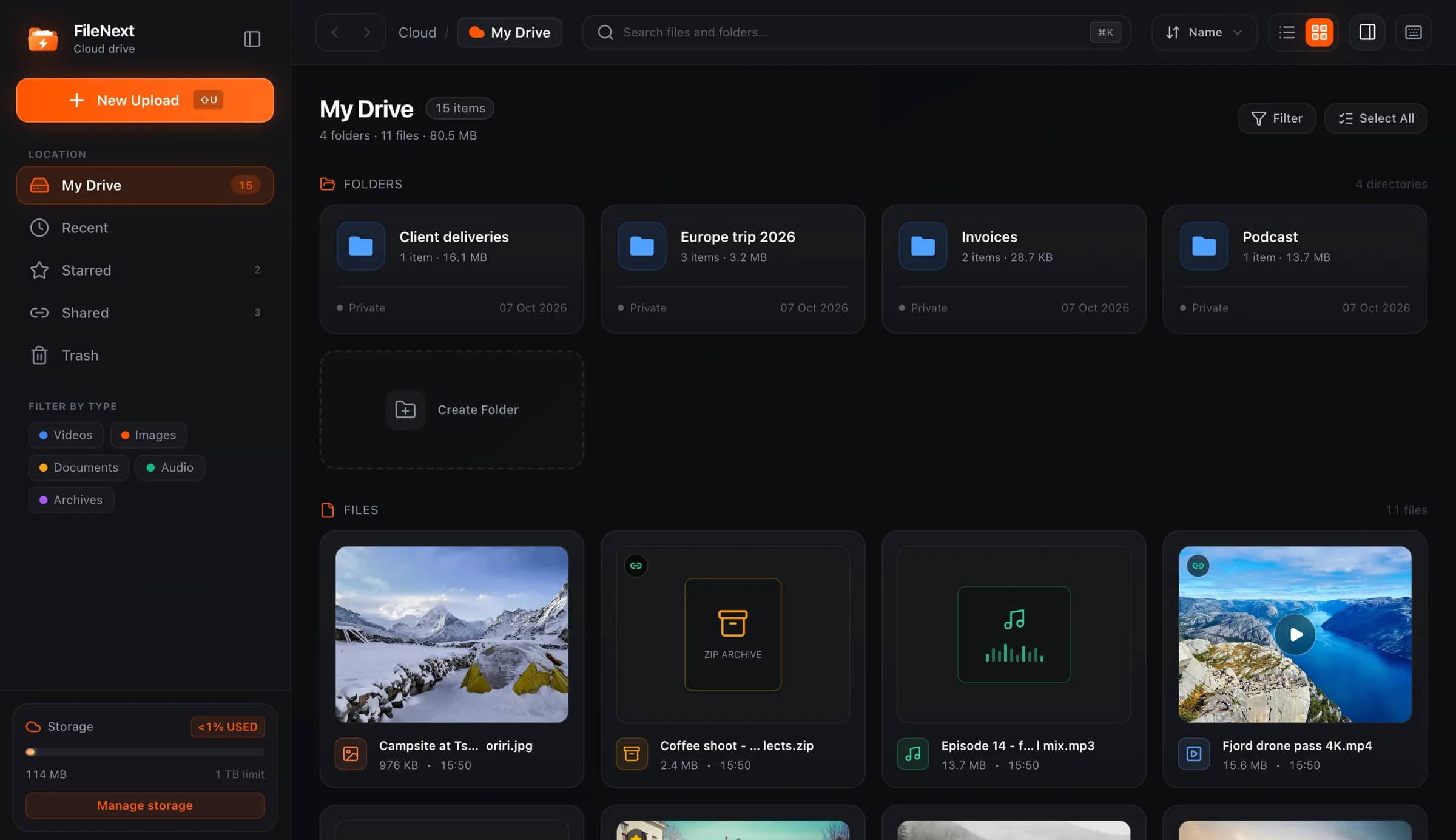
- A real drive. Search, filters by type, Starred, Recent, Trash with restore, previews for video, music, photos, PDFs and text, multi-select, and a ZIP download of a folder or a batch of files. Press ? in the drive to see the keyboard shortcuts.
- Custom covers from the web. Right-click a video and choose Change cover to upload a JPEG, PNG, WebP or GIF up to 10 MB. Same result as the bot's Covers, with a mouse.
- The apps. The Android app is on Google Play, with the drive, the player, and optional Auto Backup of your photos and videos. The Mac app downloads from the site, with its own player and optional folder sync. iPhone, iPad and Windows are coming soon. All of them sign in with the web account.
- Premium, if you want it: 5 TB, passwords, expiry dates and download limits on share links, per-link stats, and HD streaming for viewers of your shared videos. Details on the pricing page.
You keep the bot. Sending a video from your phone still works exactly as before, and it still goes in the same folder. The chat just stops being the only door.
Start from the bot
Send /account to the bot, or tap the FileNext account button in its menu. It replies with a link and a short note: the link works once and expires in 15 minutes.
Open the link. It takes you to filenext.in, where you either sign in to a web account you already have or create one on the spot with an email and password or Continue with Google. If you create one, the page brings you straight back to the connect step afterwards.
Then you see a short summary of what's about to move: your name on Telegram and how many files are coming across. Confirm, and the two become one account.
Two things about that link. It's single-use, so if you open it, close the tab and come back later, it won't work twice; send /account again for a fresh one. And it's a key to your Telegram files, so don't forward it to anyone. Whoever opens it while it's live can attach your videos to their account.
If the link has expired by the time you get to it, the page says so. There's no harm done; ask the bot for another.
Start from the web
If you already have a web account and want to attach a Telegram chat to it, go the other way. Open the Account page in the drive and press Connect Telegram.
The page gives you an Open Telegram button and a short message to send the bot. Tap the button to jump into the chat with the message ready, or copy it and paste it in yourself. The message is also good for 15 minutes. Once you've sent it, come back to the Account page and press refresh; it should now show Connected with your Telegram username next to it.
There's also a link on that page that says "I have a link from the bot". If you asked the bot for a link first and ended up on the web by another route, paste the link there and it finishes the same way.
Either direction ends in the same place: one account, reachable from the website, the apps and the chat. A Telegram chat connects to one web account at a time, so if the bot tells you it's already connected somewhere, use /unlink there first.
What moves over
Your videos and their covers. Everything the bot has uploaded for you goes into the web account's drive, still inside "Telegram uploads", with the same covers you set. Nothing is re-uploaded.
If you had a web account with files in it already, those are untouched. The two sets sit side by side in one drive, and you can start moving things into folders straight away.
/unlink and Disconnect
Connecting isn't a one-way door. In the bot, /unlink detaches the chat from the web account. On the web, Disconnect on the Account page does the same thing from the other side. Both take effect immediately.
Your files stay put either way. They're in the web account, and they stay in the web account, with the same links. The bot simply stops seeing them, and the chat stops being a way in. That makes Disconnect useful for more than changing your mind: if you lose a phone, or hand a shared Telegram account to someone else, disconnecting means the chat can no longer reach your drive. Your email or Google sign-in still works.
A chat that was never connected can't be unlinked, because there's nothing to unlink it from. The bot will tell you so and point you at the FileNext account button.
When to connect
If you're already on the web, do it the next time you have the bot open, so your phone videos show up in the same drive as everything else. If you're Telegram-only and happy, the moment to connect is the first time the bot says a file is too big, or the first time you want to send someone something that isn't a video.
The short version lives in Help, and the bot itself is described on the Telegram page.