
The same video can play fine on your laptop, show a black screen on your cousin's phone, and refuse to open at all on a TV. Nothing is broken. The file is just a combination of two things, and the device needs to understand both.
Once you know what those two things are, most "why won't this play" problems explain themselves.
Containers and codecs are different things
A video file has a container and at least one codec.
The container is the box. It holds the video track, the audio track, subtitles if there are any, and some information about how they line up. The file extension tells you the container: .mp4, .mkv, .mov, .webm.
The codec is how the picture inside the box is compressed. H.264, HEVC (also called H.265), VP9, and AV1 are video codecs. AAC, MP3, and Opus are audio codecs. The extension doesn't tell you which codec is inside.
That's the part that trips people up. Two files can both end in .mp4 and one plays everywhere while the other doesn't, because they hold different codecs. And an .mkv that won't open might contain exactly the same H.264 video as an .mp4 that does.
A device plays a file when it understands the container and all the codecs inside it. Miss any one of those and you get a black screen, picture with no sound, or an error.
MP4 with H.264 and AAC is the safe default
If you want a file that plays on almost anything made in the last decade, use an MP4 container with H.264 video and AAC audio. Phones, laptops, TVs, browsers, and chat apps all handle it. It's what most cameras and phones record by default, and what most editing apps export unless you change the setting.
It isn't the most efficient option. A newer codec can make a smaller file at the same quality. But when you need the file to open on a device you don't control, H.264 in MP4 is the choice that doesn't come back with a complaint.
If your export dialog has a "compatibility" or "most compatible" preset, this is what it means.
MKV is a container, not a codec
MKV (Matroska) is a flexible container. It can hold almost any codec, multiple audio tracks, several subtitle tracks, and chapters, which is why it's common for things like ripped discs and long-form content with multiple languages.
The trouble is playback. Many phone players, the built-in players on a lot of TVs, and most browsers don't open MKV at all, even when the video inside is plain H.264. The container is the problem, not the picture.
If you have an MKV that won't play, the fix is often just changing the container. Tools like HandBrake or ffmpeg can rewrap the same video and audio into an MP4 without re-encoding, which takes seconds and doesn't touch the quality. If the audio inside is in a format MP4 doesn't accept, the tool will convert just the audio track.
HEVC is smaller but less welcome
HEVC, or H.265, compresses roughly twice as well as H.264. A file at the same visual quality comes out noticeably smaller, which is why newer phones record in it, especially for 4K.
The catch is support. HEVC is covered by patents and licensing, so some software and some devices don't include it. Older Android phones, some browsers, and plenty of desktop setups without the right codec installed won't play it. The file opens, you hear audio, and the picture is black or missing.
If you shoot in HEVC on your phone and the videos won't play when you send them to someone, this is why. Most phones have a setting to record in a compatible format instead, usually under camera settings as "Most compatible" versus "High efficiency."
AV1 is efficient, but hardware is catching up
AV1 is newer and royalty-free, and it compresses better than HEVC. Big streaming services use it because the bandwidth savings add up at scale.
For your own files, the question is whether the device decoding the video has hardware support. Without it, the processor does the work in software, which drains the battery and stutters on anything that isn't recent. Newer phones and laptops are getting AV1 decoding built in, but a lot of what's in use today doesn't have it.
AV1 is a good choice for a stream you control end to end. It's a risky choice for a file you're handing to someone whose device you've never seen.
What phones struggle with
Across all of this, the patterns on phones are consistent:
- MKV containers often won't open, regardless of what's inside.
- HEVC plays on newer phones and fails on older ones and some browsers.
- AV1 plays smoothly only with hardware decoding, which is still uneven.
- Very high bitrates stutter on a weak connection even when the codec is fine. A 4K phone recording is roughly 300 to 400 MB per minute, and that's a lot to pull over mobile data.
- Unusual audio codecs produce picture with no sound.
The last one gets missed a lot. People check the video codec and forget the audio track. If the picture plays and the sound doesn't, look at the audio.
How a converted stream sidesteps all of this
Here's the practical answer for sharing: don't send the file, send a stream.
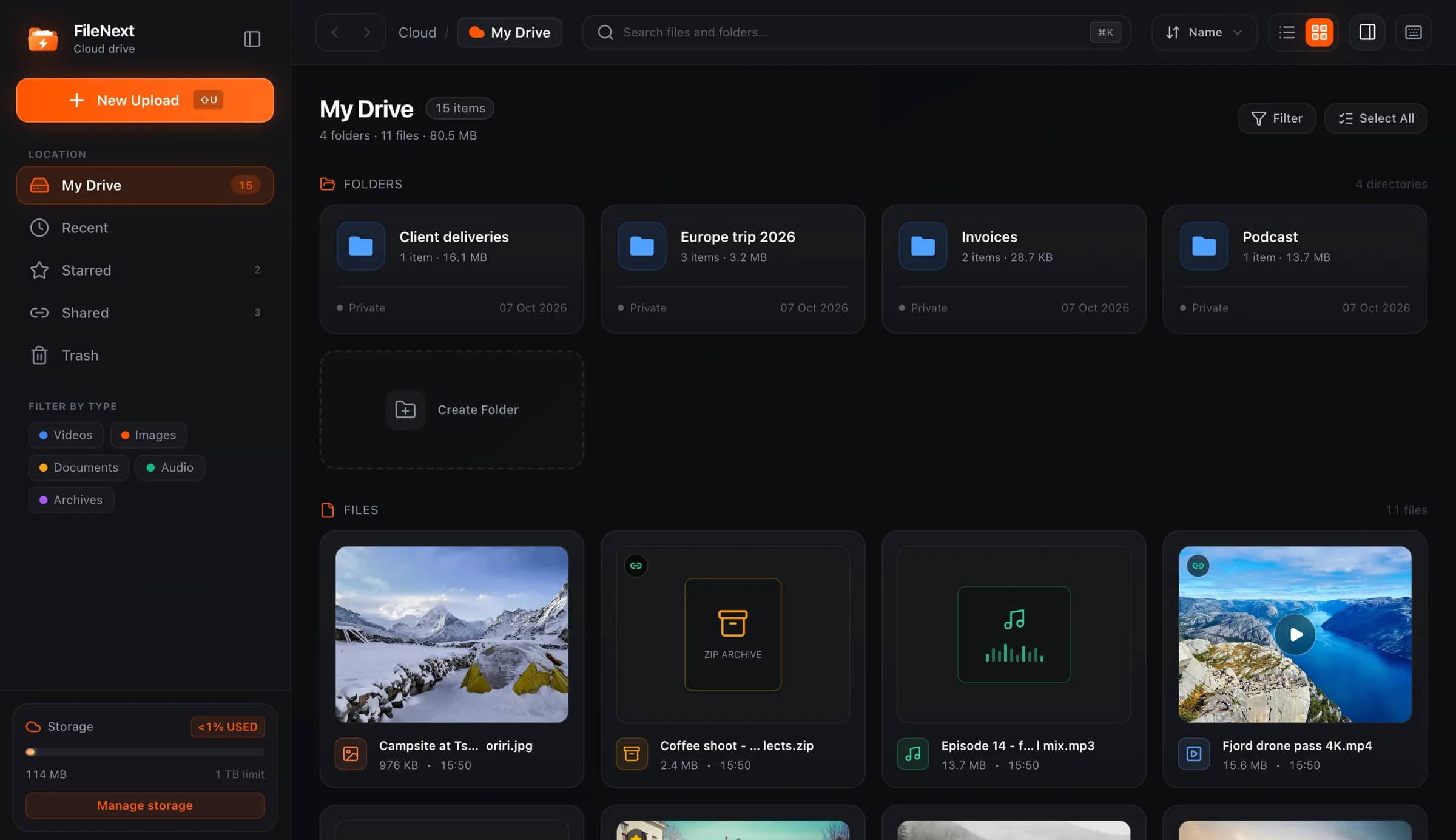
When you upload a video to FileNext, it's converted into streaming renditions at 360p, 480p, 720p, and 1080p. The viewer's device plays the rendition, not your original, so it doesn't need to understand whatever container and codec you uploaded. An MKV with HEVC inside goes in; a stream that plays comes out. The viewer never sees the container or codec question at all.
The renditions also adapt to the viewer's connection. This is adaptive bitrate streaming, the approach HLS uses: the video is split into small segments at several quality levels, and the player picks the level the connection can keep up with, switching mid-stream if the connection changes. Someone on a weak mobile signal gets the 360p or 480p version; someone on wifi gets 720p or 1080p. Free viewers of a shared video get SD; HD streaming at 720p and above on shared videos comes with Premium.
That's different from a progressive download, where the player pulls one file at one quality from start to finish. If the connection can't keep up, it stops and waits.
Meanwhile the original file stays in your drive untouched. Conversion makes copies for streaming; it doesn't replace what you uploaded. You can download your own original at any time, in its original container and codec, at original quality. The converted versions are for viewers. The original is yours.
This also means you don't need to think about format before uploading. If you have a 4K HEVC clip from your phone, an MKV from an editor, or a plain MP4, upload it as it is. The conversion handles the compatibility question for everyone who opens your link, and you keep the file you started with.
When to convert yourself anyway
A few cases where it's still worth exporting an MP4 before sharing:
- You're sending the file directly, by email or in a chat, rather than through a link.
- You're uploading to a service that doesn't convert.
- You want the smallest possible file and you're sure the recipient's device handles HEVC.
For everything else, keep your original in whatever format it came in and let the stream do the work. More on how uploads and playback work is in how it works and the help center.