
Most people use a video player the way they'd use a TV: press play, wait. The controls that save real time sit one click away and almost nobody touches them.
Subtitles: three kinds, and only two can be switched off
A subtitle is either a separate track or part of the picture. The difference decides everything about what you can do with it.
Sidecar files are the most common. An SRT file is plain text: a number, a time range, a line or two of dialogue, repeat. WebVTT (.vtt) is the browser-native version of the same idea, and it's what web players use under the hood. Converting between the two is trivial and plenty of free tools do it. Give the subtitle file the same name as the video (lecture-03.mp4 and lecture-03.srt) and most desktop players pick it up on their own.
Embedded tracks live inside the container. MKV files often carry several subtitle languages as separate streams you can switch between. MP4 can do it too, though it's less common. The catch is that a player has to understand the container to see the track, and many phone players don't open MKV at all. If a video "has subtitles" on your computer but shows none on your phone, this is usually why.
Burned-in subtitles aren't a track. They were rendered into the video frames when it was exported, the same as a watermark. No player can turn them off, change their size, or swap the language, because to the player they're just pixels. That's also their strength: they show up everywhere, in every app, on every device, with nothing to configure. If you're making a video for people who'll watch it on whatever player they happen to have, burned-in is the safe choice. If you want viewers to pick a language or hide the text, keep subtitles as a track and ship the clean video.
One habit that pays off: when you export a video with burned-in subtitles, keep the version without them. You can always add text to a clean video later. You can't take it back out.
The FileNext drive player has a subtitles control. Like every player, it only applies to subtitle tracks; burned-in text is part of the video and plays as-is.
Playback speed: the lecture trick
A one-hour recorded lecture at 1.5x is forty minutes. At 1.25x it's forty-eight. Over a semester that's days of your life back, and for most spoken content you won't miss anything. Modern players keep the pitch steady when you change speed, so the speaker sounds quicker, not like a chipmunk.
A rough guide to what speed suits what:
- 1.25x to 1.5x for lectures, talks, interviews, recorded meetings. Anything where one person is explaining something at a comfortable pace.
- 1x for anything with music, anything you're watching for enjoyment, and anything where the timing matters (comedy, drama, a demo you're trying to follow step by step).
- 0.75x or 0.5x for the opposite problem: a fast speaker, a language you're learning, a tutorial where someone's hands move faster than you can copy, or a dance or sports clip you're trying to break down.
In the FileNext player, playback speed is in the controls. Start a long recording at 1.5x, and if a section turns out to matter, drop back to 1x.
Picture-in-picture: watch while you work
Picture-in-picture pops the video out of the page into a small floating window that stays on top of everything else. You can switch tabs, open a document, go through email, and the video keeps playing in the corner. Drag it wherever it's least in the way. Click it to go back to the full player.
It's built for anything you half-watch:
- A tutorial you're following along with. Video in the corner, your editor or spreadsheet in the main window, no alt-tabbing.
- A long recording you need to listen to but not look at. Shrink it, get on with something else, glance over when you hear something that matters.
Browsers support it on desktop, and the FileNext drive player has a picture-in-picture button in the controls. On phones, the way a video floats depends on the operating system, so it's mostly a desktop habit. If you watch on a Mac, the FileNext Mac app has its own player; see /apps for what's available.
Stepping through a folder
If you have ten clips to review, the slow way is: open one, watch, close, find the next in the list, open. The fast way is to open the first and step to the next without leaving the player.
This is what makes folders worth organizing by series. A folder called "Course 2 - Week 4" with lectures numbered 01, 02, 03 becomes something you can play through in order. A folder of raw takes from a shoot becomes a reel you can skim, marking the keepers as you go. A set of client revisions, v1 through v6, becomes something you can flip through to see what changed.
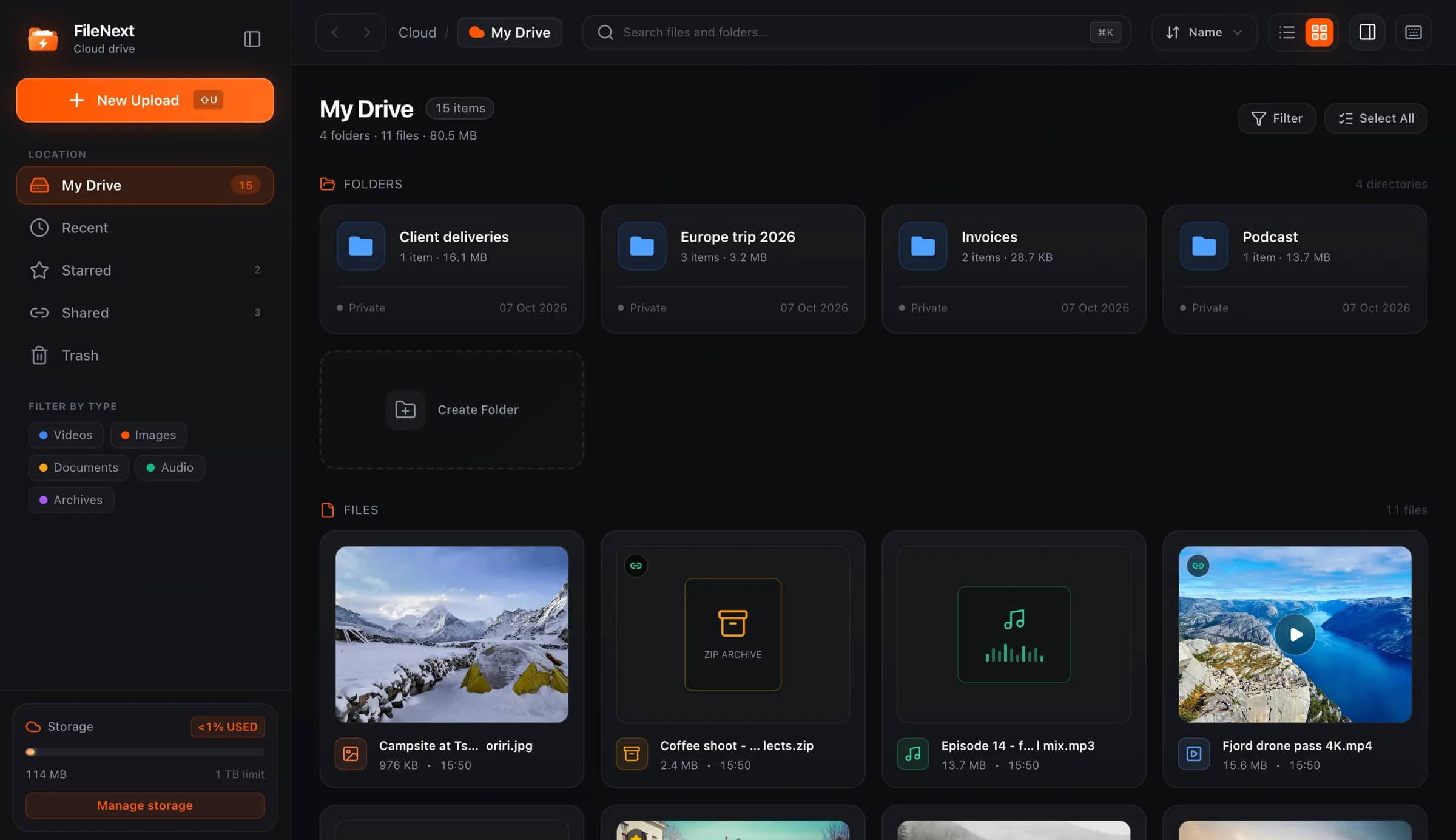
In the FileNext drive player, you can step through the files in the current folder without closing the viewer. Two tips that make this better:
- Name files so they sort in the order you want to watch them. "01-intro", "02-setup", "10-wrap-up" sorts correctly. "1-intro", "2-setup", "10-wrap-up" puts 10 after 1.
- Star the files you want to come back to while you're stepping through. Starred collects them in one place, so your review pass produces a shortlist instead of a mental note.
Press ? in the drive to see the full list of keyboard shortcuts.
Seeking without the guesswork
Seeking is dragging the playhead to a point in the video. Everyone does it; a few things make it less of a scrub-and-hope exercise.
Use the keyboard for small moves. Arrow keys on most web players skip a few seconds back or forward. That's the right tool for "wait, what did they just say": tap left twice, listen again, carry on. Dragging for that is clumsy and you overshoot.
Use the bar for big moves. Jumping to the middle of a two-hour recording is what the progress bar is for. Drag, let go, and the player loads from there.
Streamed video seeks faster than you'd expect. When a video is served as adaptive streaming, it's split into short segments at several quality levels. Seeking to minute 47 doesn't mean downloading minutes one through forty-six first; the player fetches the segment at minute 47 and starts. Every video uploaded to FileNext is converted this way, into 360p, 480p, 720p and 1080p renditions, which is why seeking around a long upload in the drive is quick even on a slow connection.
Seek while paused when you need precision. Pause, drag to roughly the right place, then nudge with the keyboard. Useful for finding the exact frame for a cover: once you've found it, take a screenshot and set it with Change cover.
Putting it together
A recorded workshop, three hours, split into six files in one folder. Open the first at 1.5x, subtitles on if the audio is rough. When you hit the part you need, drop to 1x and tap back a few seconds to catch it properly. Pop it into picture-in-picture while you take notes in another window. Step to the next file when you're done. Star the two sessions worth rewatching.
None of that needs a special setup, and most of it works in any decent player. The FileNext drive player has all of it in its controls; /help#player lists what's there, and /features covers the rest of the drive.