
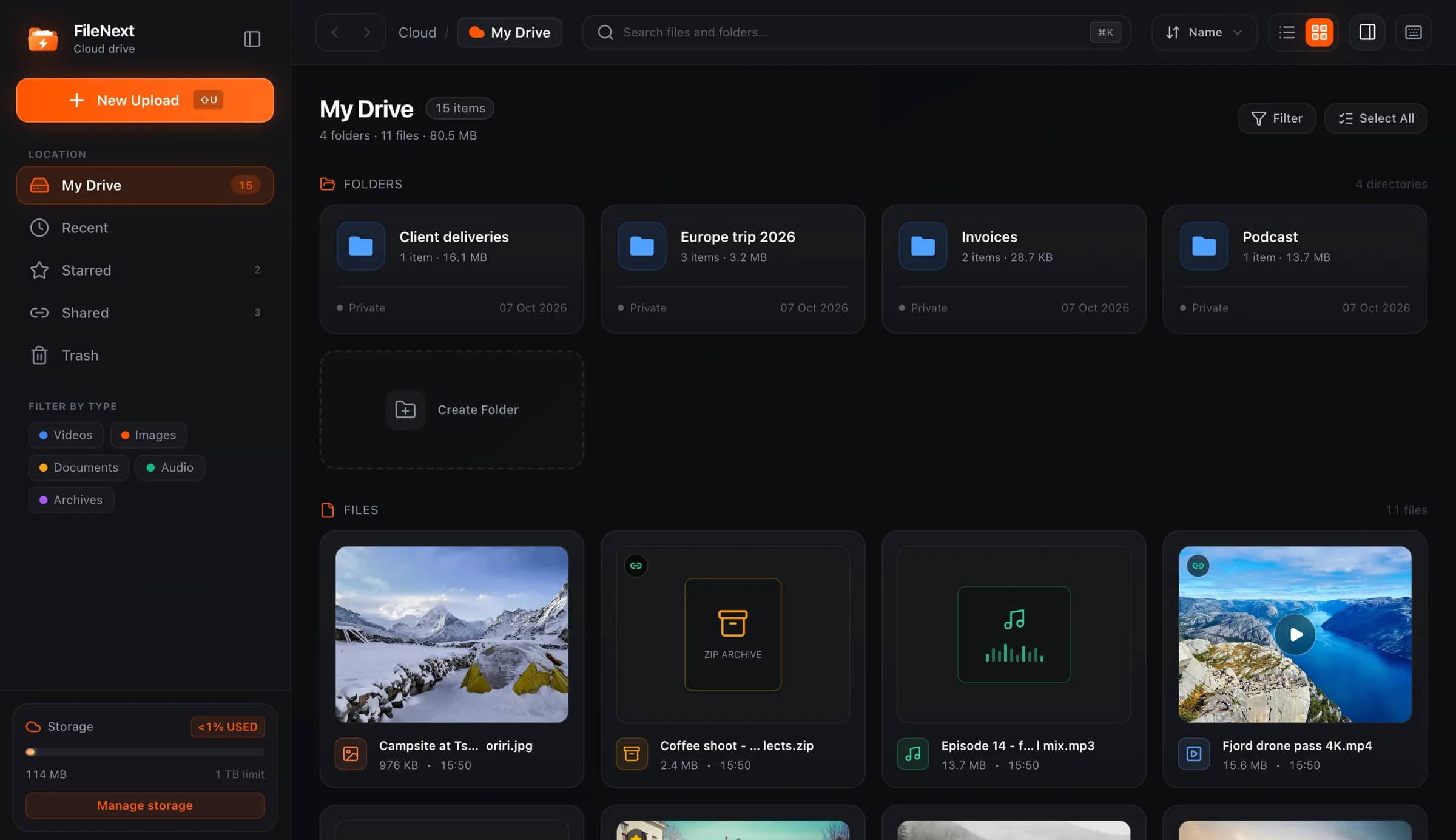
A cover is the one frame people see before they decide whether to press play. Most viewers see it at the size of a postage stamp, in a chat, next to twenty other things competing for a tap. If the frame is dark, blurry, or shows nothing in particular, the video loses before it starts.
You don't need a designer. You need a frame that shows the subject, a title that matches it, and a few habits that keep the image readable when it's small.
Pick a frame that shows the subject
The subject of the video should be the subject of the cover. A cooking video should show the dish, not the empty pan. A tutorial should show the finished result or the one moment that makes the method obvious. A travel clip should show the place, not the inside of the car on the way there.
Scrub through the video and look for frames where:
- The main thing is in the middle third of the image and fills a good part of it.
- Nothing is mid-motion. Blur that looks fine at full size turns into mud at thumbnail size.
- The exposure is even. A frame that is half shadow loses half its information when it's shrunk.
- There is some contrast between the subject and the background.
If you can't find a frame like that, the first few seconds of the video are often a better source than the middle. Openings tend to be framed on purpose. The middle of a clip is where the camera wanders.
Keep faces readable at small sizes
Faces pull attention, which is why so many covers use them. But a face that works on a laptop can vanish on a phone. A quick test: shrink the image to the width of your thumb. If you can't make out the expression, the face is too small.
Crop closer. A head-and-shoulders frame reads at any size. A full-body shot in a wide room does not. If the video is of two people talking, pick the frame where one of them is closer to the camera, or where both are near each other, and crop to that.
Expressions matter less than people think. A neutral face looking at the camera is fine. An exaggerated face looks like a fake and makes people trust the video less.
Avoid text that lies
Text on a cover is a promise. If the cover says "Full recipe" and the video is a thirty-second teaser, the viewer feels tricked and leaves, and they remember who tricked them.
If you add text, keep it to a few words, make it large, and make sure the video delivers on it. "Day 3" is fine. "Chapter 2 of 5" is fine. "You won't believe what happens" is not, because nothing in the video will match that.
Most covers don't need text at all. The title sits next to the cover wherever the video is shown. Putting the same words on the image again just makes the image busier.
Match the title
The cover and the title should describe the same thing. If the title says "Sunrise at Nandi Hills" and the cover shows a parking lot, people assume the file is mislabeled. The best check is to look at the cover and title together, as a viewer would, and ask whether they look like they belong to the same file.
This also keeps your own drive easier to search. A cover that shows what's in the video is faster to recognize than any filename.
Making a cover from scratch
Sometimes no frame in the video is good enough. The video was shot vertically but you want a wide cover, or the whole thing is low light, or it's a screen recording where every frame looks the same.
In that case, make a still. Use a photo from the same shoot, a clean screenshot of the finished result, or a simple graphic with the subject and nothing else. Keep the aspect ratio close to the video's own ratio, so the image isn't cropped in unexpected ways wherever it appears.
Export it at a reasonable resolution. Something around 1280 pixels on the long edge is plenty. A cover doesn't need to be as large as a wallpaper, and a huge file only slows down the preview.
How covers work on FileNext
Every video you upload to FileNext gets a cover automatically. FileNext picks a frame from the video and uses it in the drive, in the share page, and in the card the Telegram bot sends back after an upload. Photos and music files get automatic covers too, so your drive doesn't fill up with gray boxes.
The automatic frame is usually fine. When it isn't, you can replace it.
Change cover on the web
Open your drive, right-click the video (or open its menu), and choose Change cover. Pick an image from your computer. That's the whole flow.
Accepted formats are JPEG, PNG, WebP, and GIF. The file can be up to 10 MB. Any of those formats works; JPEG is the smallest for photographs, PNG is better for screenshots with text or flat colors.
Covers in the Telegram bot
If you upload through the Telegram bot, you can change a cover without leaving Telegram. Send /covers, pick the video you want to update, then send a photo. That photo becomes the video's cover. The same formats and the same 10 MB limit apply.
The bot only accepts videos as uploads. A photo on its own won't go to your drive. But a photo sent after you pick a video in Covers is treated as a cover, which is the one place photos have a job in the bot.
Once a cover is set, it's what the drive and the share page show for that file.
Which covers to change first
You don't have to go through every file. Start with the videos you've shared or plan to share, since those are the ones other people will see. For the rest, the automatic frame is usually good enough to find the file again.
If you share a lot of videos through Telegram, it's worth setting up a habit: upload the video, send /covers, send the photo, done. It takes under a minute and it's the difference between a card that gets opened and one that scrolls by.
A short checklist
Before you set a cover, look at it at roughly the size of your thumbnail and ask:
- Can I tell what the video is about?
- Is the subject sharp, lit, and large enough to see?
- Does any text on the image tell the truth?
- Does it match the title?
If the answer to all four is yes, use it. If not, scrub for another frame or make a still. More on sharing and managing files is in the help center.